What's New
Multiple Dynamic Dimensions & Measures
⚙️Independent Settings for Dynamic Measures
🗂️Advanced PT Column Manager
November Release Highlights
This month, we equip designers with smart curation tools while granting end-users expanded analytical flexibility through dynamic analysis and advanced table management. Beyond these headline features, our team addressed 235 issues in October, delivering a robust set of refinements that ensure flawless performance and a seamless analytics workflow.
Multiple Dynamic Dimensions and Measures
We are redefining how end-users interact with data. Previously, the “Dynamic Change Properties” feature allowed end-users to simply swap a single dimension or measure.
With the new “ADD +” capability, end-users can instantly layer multiple measures, and/or drill deeper by adding a second or a third dimension for direct comparison on their chart.
For Pivot Tables, this flexibility turns the dashboard into an ad-hoc report builder. Users can dynamically Add Dimensions and distribute them across Rows or Columns. The system handles the logic to prevent duplication, allowing users to restructure their tables on the fly to answer complex questions instantly.
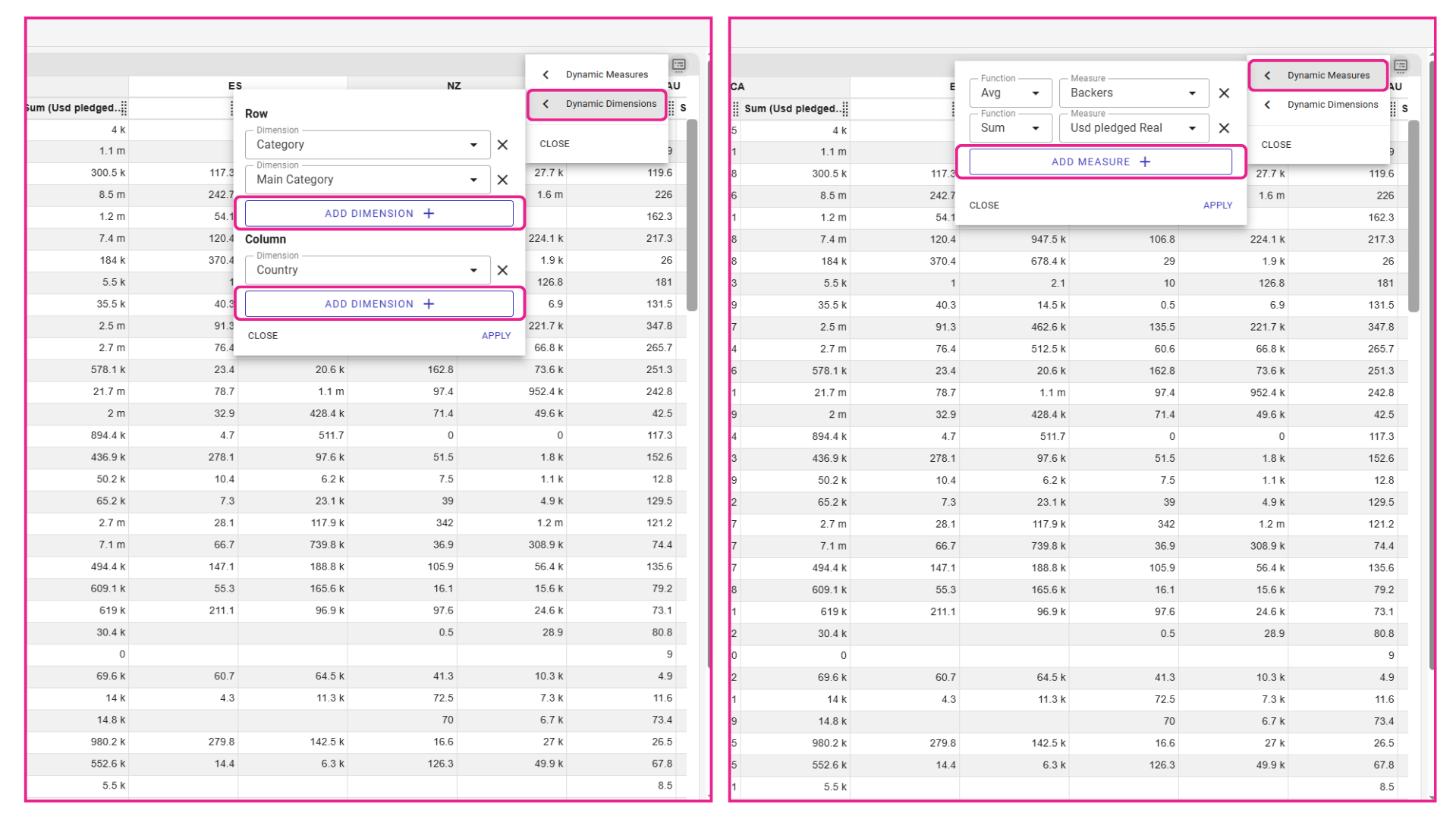
The new “ADD +” button allows end-users to stack multiple measures for comparison or add extra dimensions to drill down deeper.
Independent Settings for Dynamic Measures
We have introduced a dedicated Settings Menu (ellipsis) for every new measure added to the Dynamic Measures list. Previously, added measures simply inherited the configuration of the default measure, which may sometimes lead to visual conflicts.
Now, designers can access the full range of properties for each dynamic measure independently. You can pre-configure Measure Specific Limitations, define the Position of the Axis Title (same as default or opposite), or even set a Non-Default Chart Type like displaying a specific goal line over a bar chart.
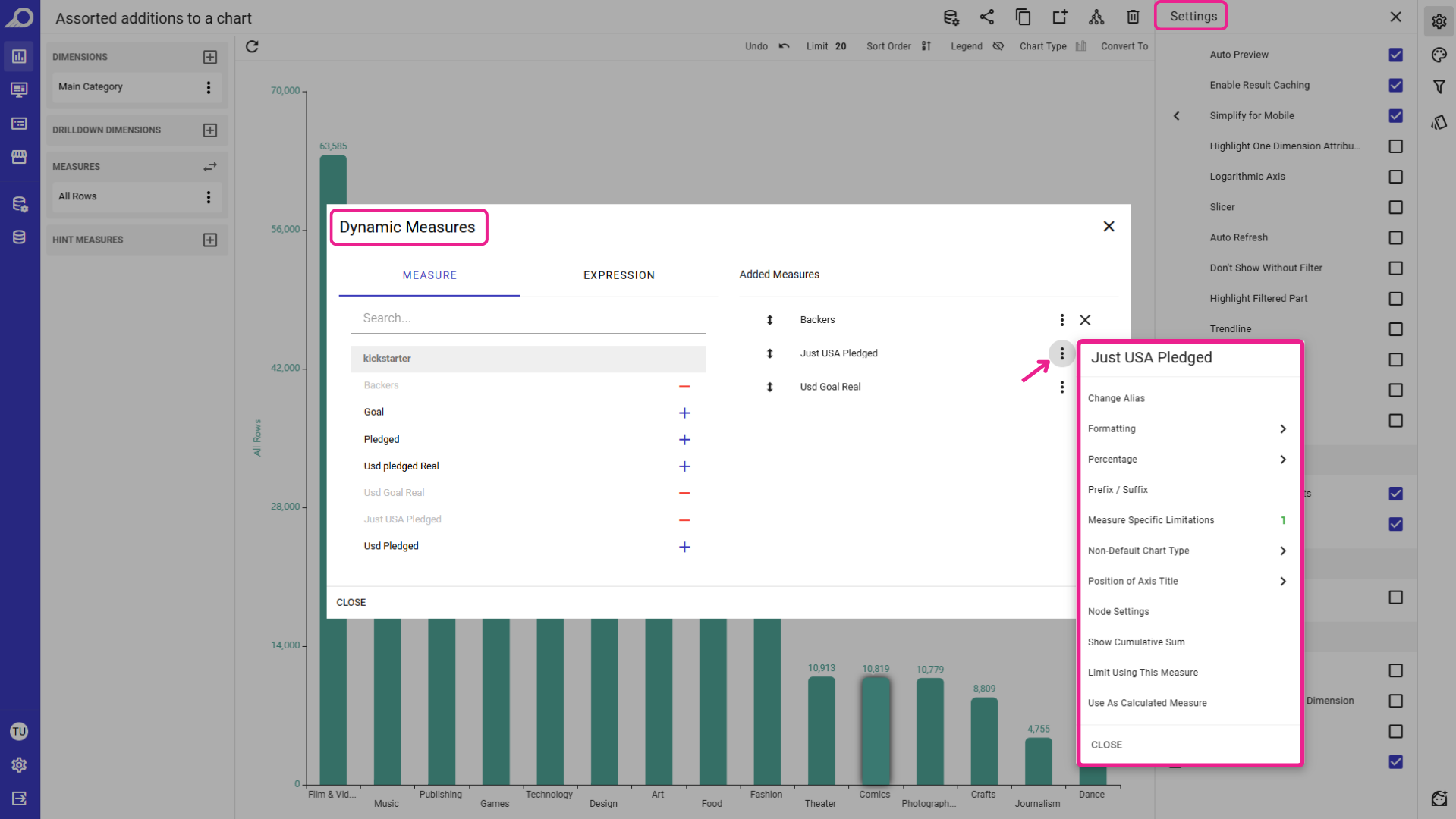
The new Measure Settings menu allows designers to configure different properties for each dynamic measure, independently overriding the default measure settings.
This ensures that when an end-user adds a dynamic measure on the dashboard’s dashlet, the visualization adapts instantly with the selected settings and formatting.
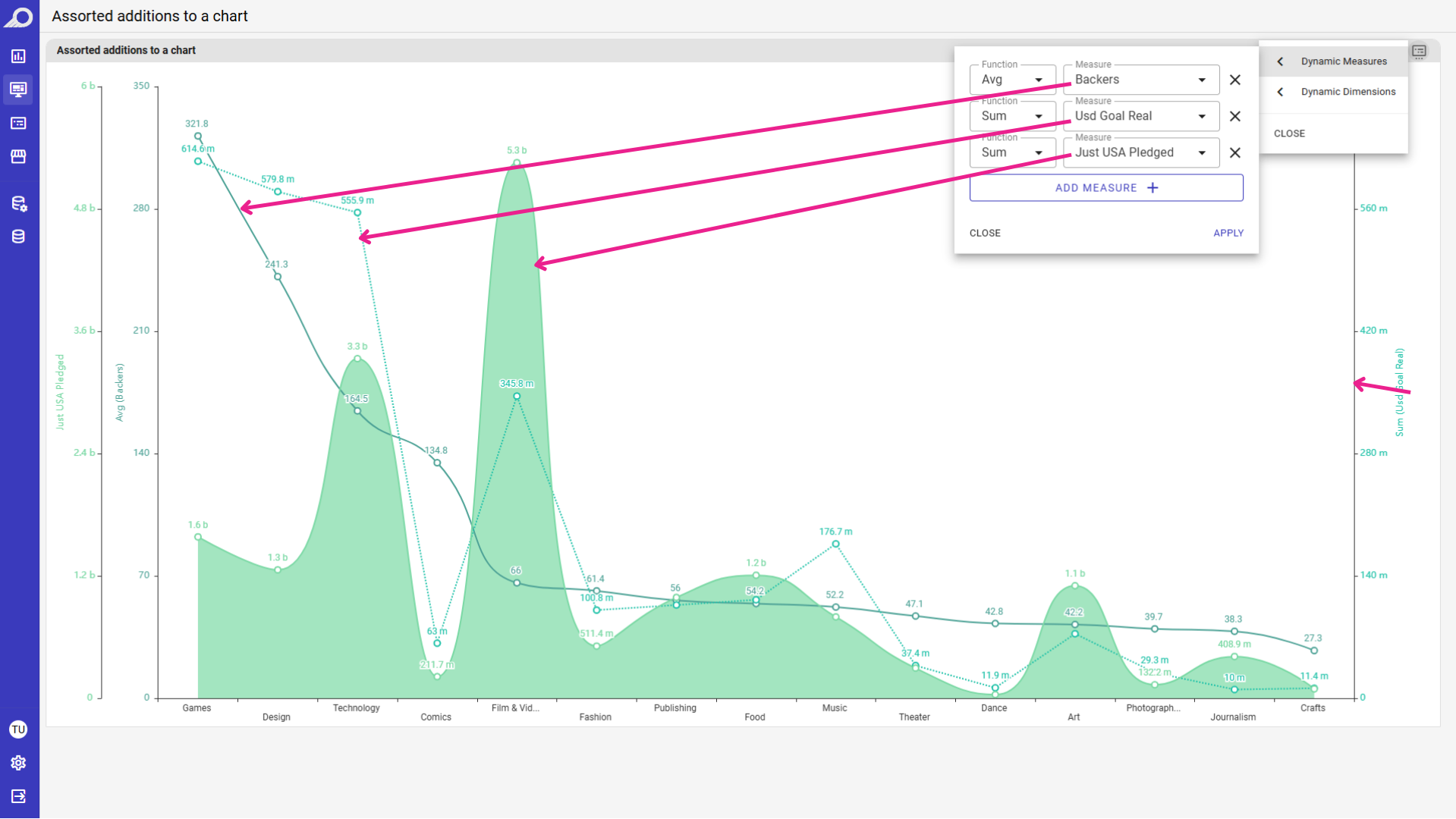
Notice how the chart automatically adapts, rendering different types and axes, based on the designer's pre-configuration.
Master Your Data Tables: Custom Column Groups & Manager
Detailed tables need to be flexible, but giving end-users access to the entire dataset often leads to confusion or displays irrelevant data fields. We are upgrading the Column Manager to give designers full control over the “available list”. Instead of automatically exposing every column in the dataset, designers can now curate exactly what the end-user is allowed to add to their PT view.
✔Curated Column Visibility
Previously, the Column Manager showed all dataset columns to the end-user by default. Now, designers have a dedicated Column Manager setting inside the dashlet editor. You can uncheck “All Columns” and manually select only the specific datacells relevant to the intended analysis.
This ensures that when users open the column manager, they see a refined, purpose-built list rather than the raw database structure.
✔Logical Grouping & Tree View
Once the designer has selected the relevant columns, they can be organized for easier navigation. Designers can bundle the selected datacells into logical Groups (e.g., Physical Stats, Technical Skills).
For the end-users, this transforms the old flat list into a clean Tree View. They can simply expand a folder to find a specific metric or check the “Group Name” box to instantly add that entire category of columns to their table at once.
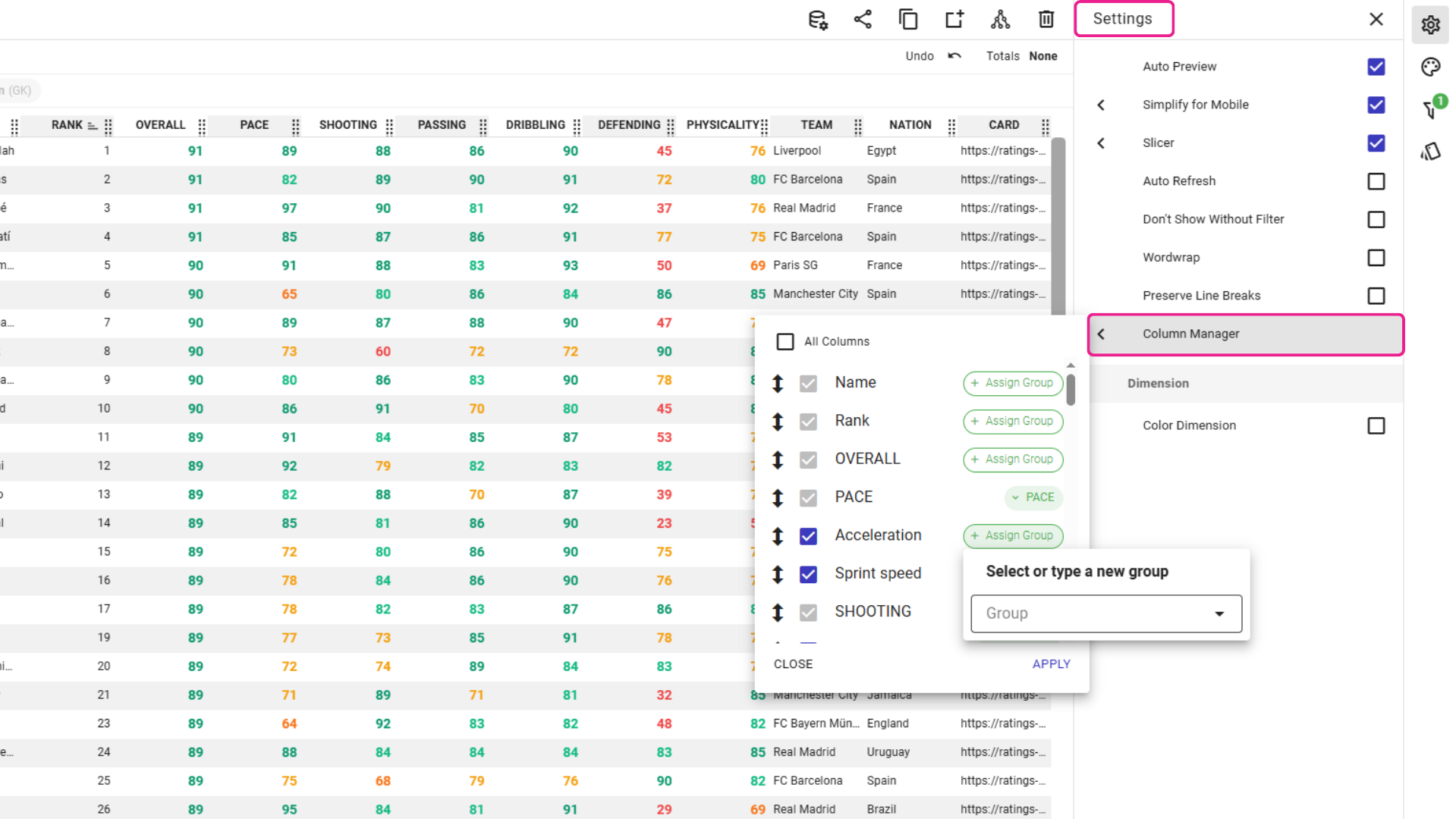
Designers can uncheck “All Columns” to curate a specific list of available datacells for the end-user, and organize them into logical Groups for better navigation.
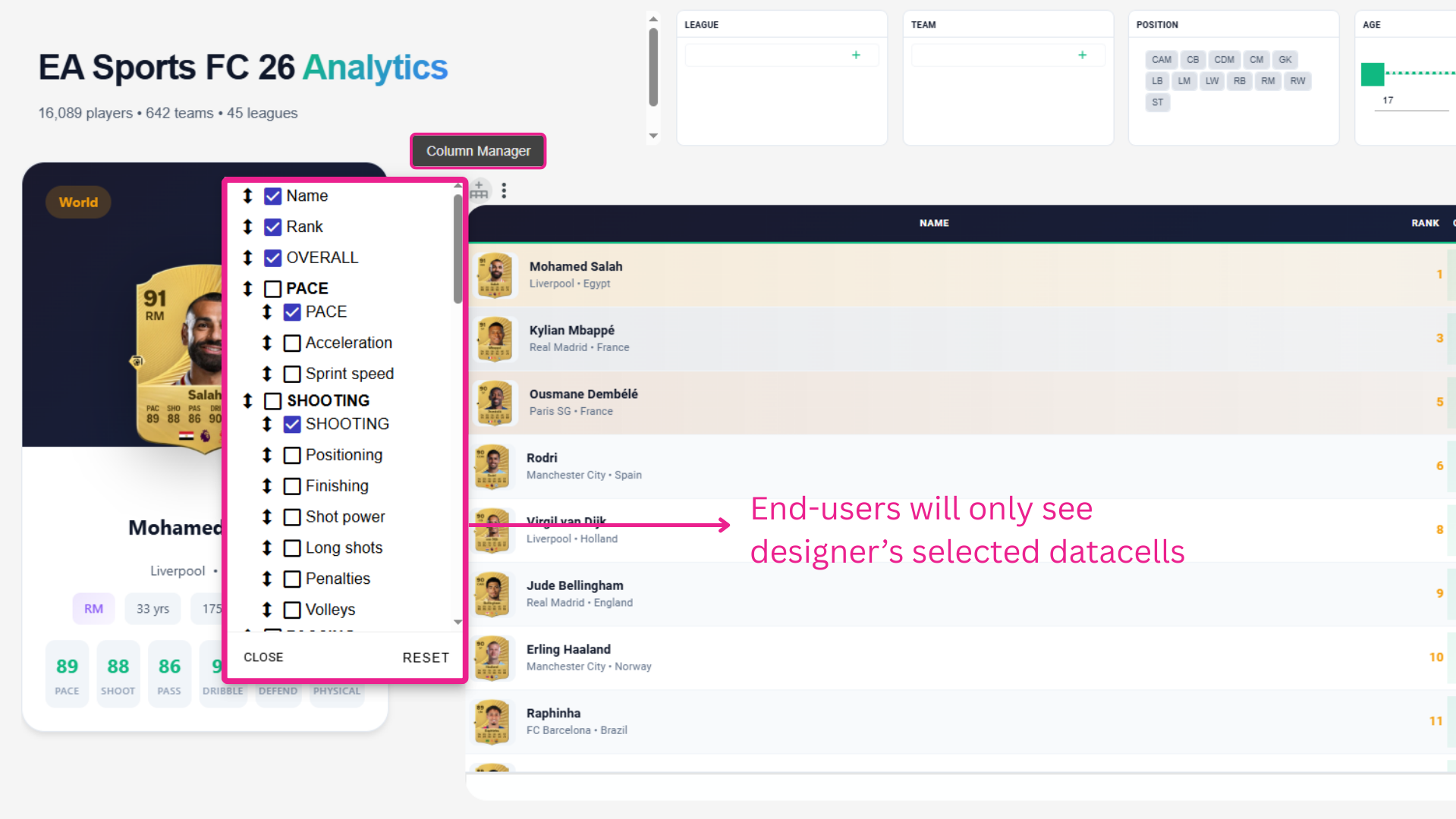
End-users get a clean tree-view access to the columns selected by the designer, and use Groups to instantly add entire sets of related metrics to their table at once.
Watch the demonstration video of the Advanced Column Manager to see how curating and grouping columns empowers your end-users to find exactly what they need.

Stop building dashboards, and start getting answers. Experience the next era of BI with our leading GenAI capabilities ‒ request your personalized free demo today.