What's New
April Release Highlights
This month's update introduces new ways to navigate from your dashboards, alongside a notification bell that surfaces showcase changes for end-users, and responsive thickness control for Gauge dashlets. Additionally, our team has successfully addressed 192 issues to optimize overall platform performance.
New Navigation Triggers for Dashboards
We have introduced two new ways to send end-users from a dashboard to their next destination with a single click. One gives a flexible action button on dashlets that can jump to any dashboard, showcase, or external link; the other turns radio-type filter widgets into a guided flow through a showcase. Each feature stands on its own, and together they let you design navigation paths that feel as fluid as browsing a well-organized site.
1. Action Button on the Dashlet Ribbon
On your dashboard, under “Box Style & Layout”, a new “Action Button” pop-up lets designers place a configurable icon on the far right of any dashlet ribbon. Paste any dashboard link, showcase link, or external URL into the link field, and a click on the icon takes the end-user straight there. A Transfer Filters option lets you optionally carry the current dashboard’s filter values onto the target (applied wherever a matching filter exists there), with “Open in New Tab” and full icon style, size, and color control rounding out the configuration.
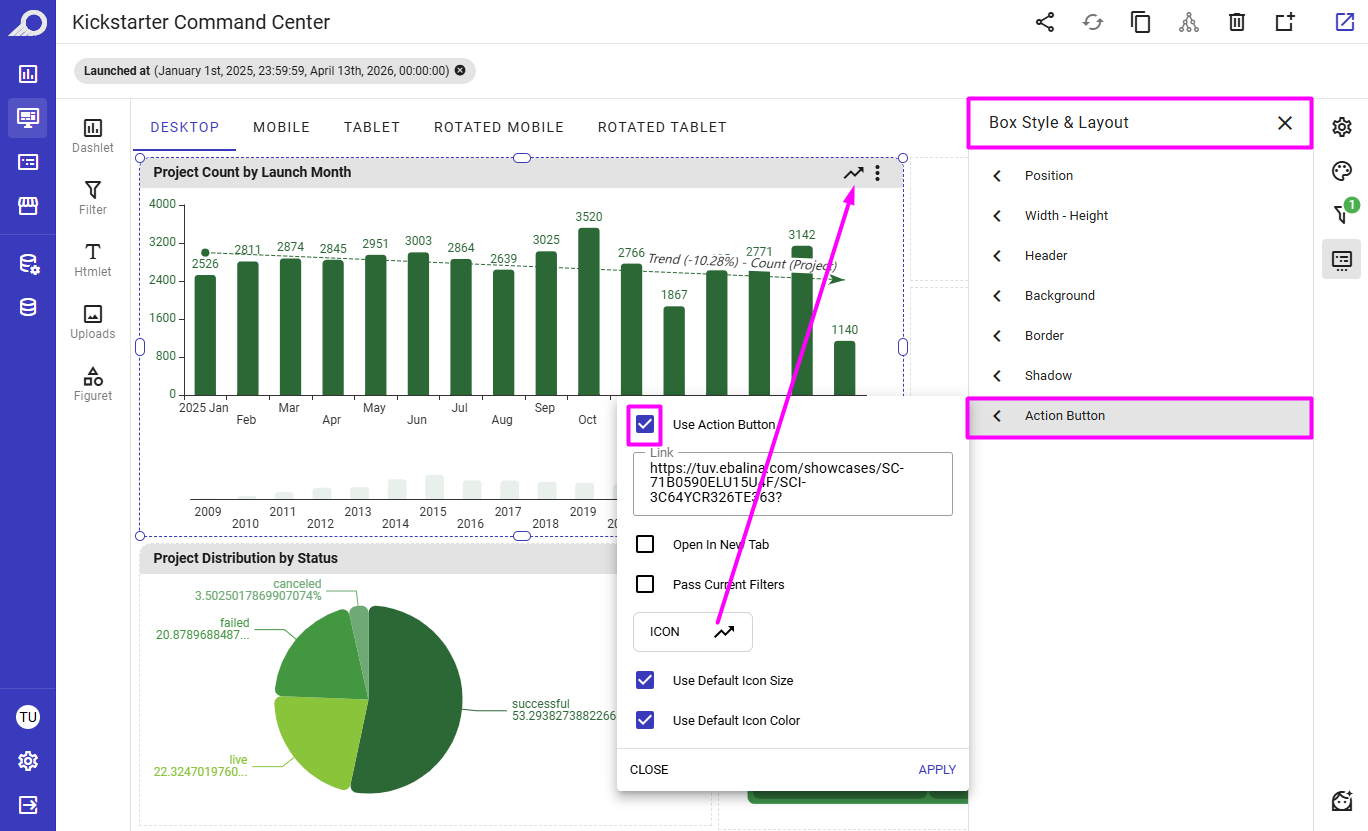
Configure the dashlet ribbon Action Button under Box Style & Layout.
2. Navigable Filter Widgets
On a dashboard within a showcase, radio-type filter widgets shown as buttons now support a new “Navigate on Click” option on the Edit Filter screen. When designers enable it, the selected value is not applied to the current dashboard; instead, the next dashboard in the same showcase opens with that value already applied — the same intuitive behavior as a storyboard slicer, ideal for guiding viewers through a curated sequence.
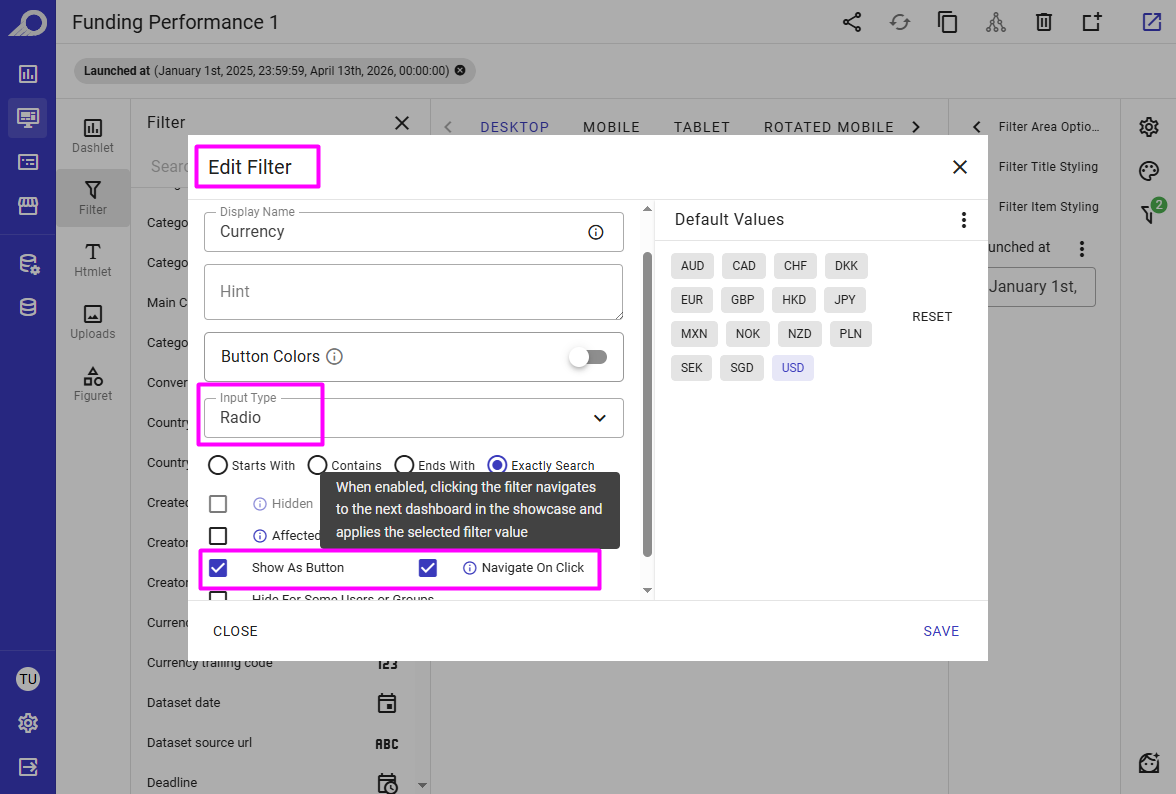
Enable Navigate on Click on a radio filter widget so end-user selections jump to the next dashboard in the same showcase with the value already applied.
See both new navigation triggers in action — watch the short video below to discover how a single click can guide your end-users from one dashboard to their next destination.
Showcase Changes Notifications
Keep track of modifications within your showcases with the new “Notification Bell”. Once enabled in the showcase settings, this bell appears in the showcase ribbon, allowing authorized viewers to quickly see what has changed over specific periods, such as today, last week, or since their last login.
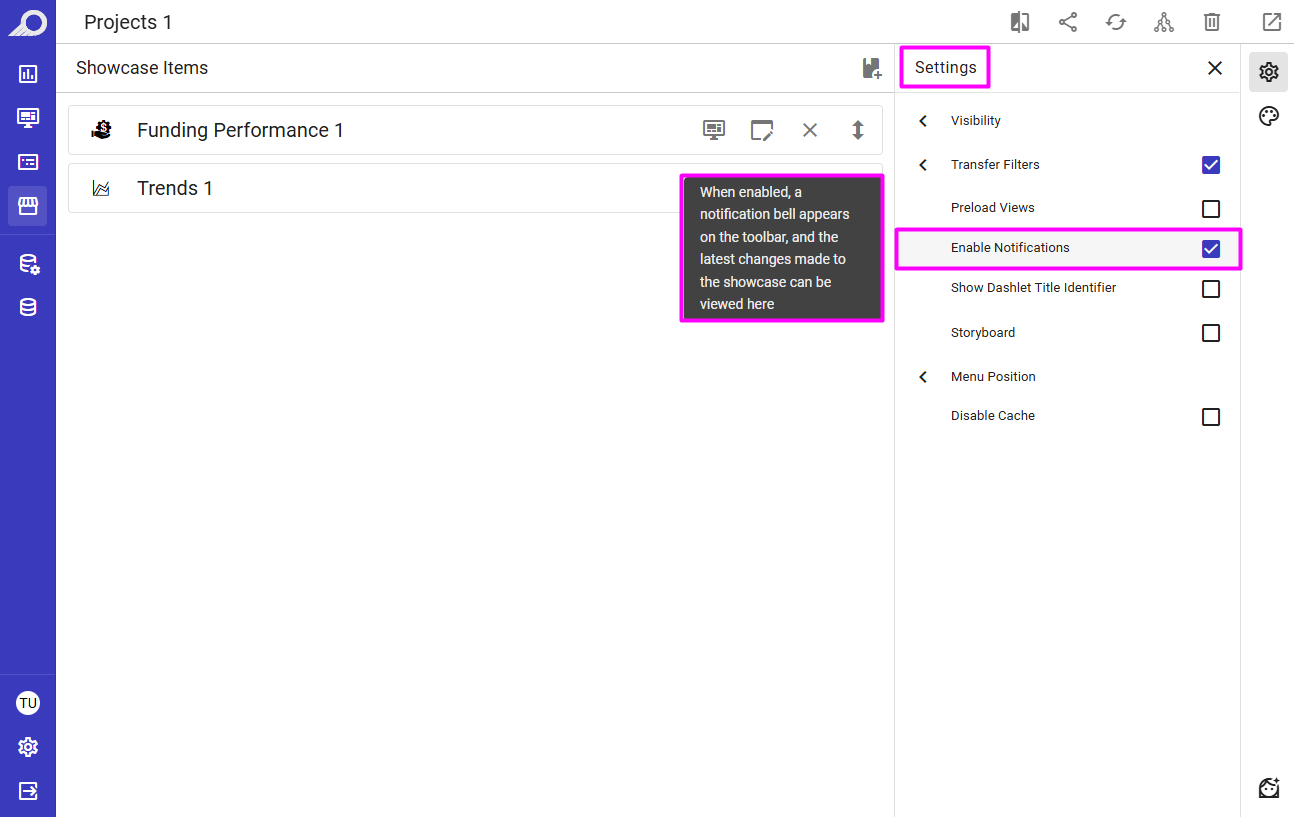
Designers can enable the notification feature from the Showcase Settings.
Clicking the icon opens a pop-up displaying recent structural and visual updates with relative timestamps for each change, ensuring everyone stays current with the latest insights.
The notification summary captures both structural and component-level adjustments. This includes the addition or removal of dashlets and dashboards, as well as modifications to filters and measures. By documenting these precise updates, the system ensures that every layout refinement or change in data logic is transparent and easy for your audience to follow.
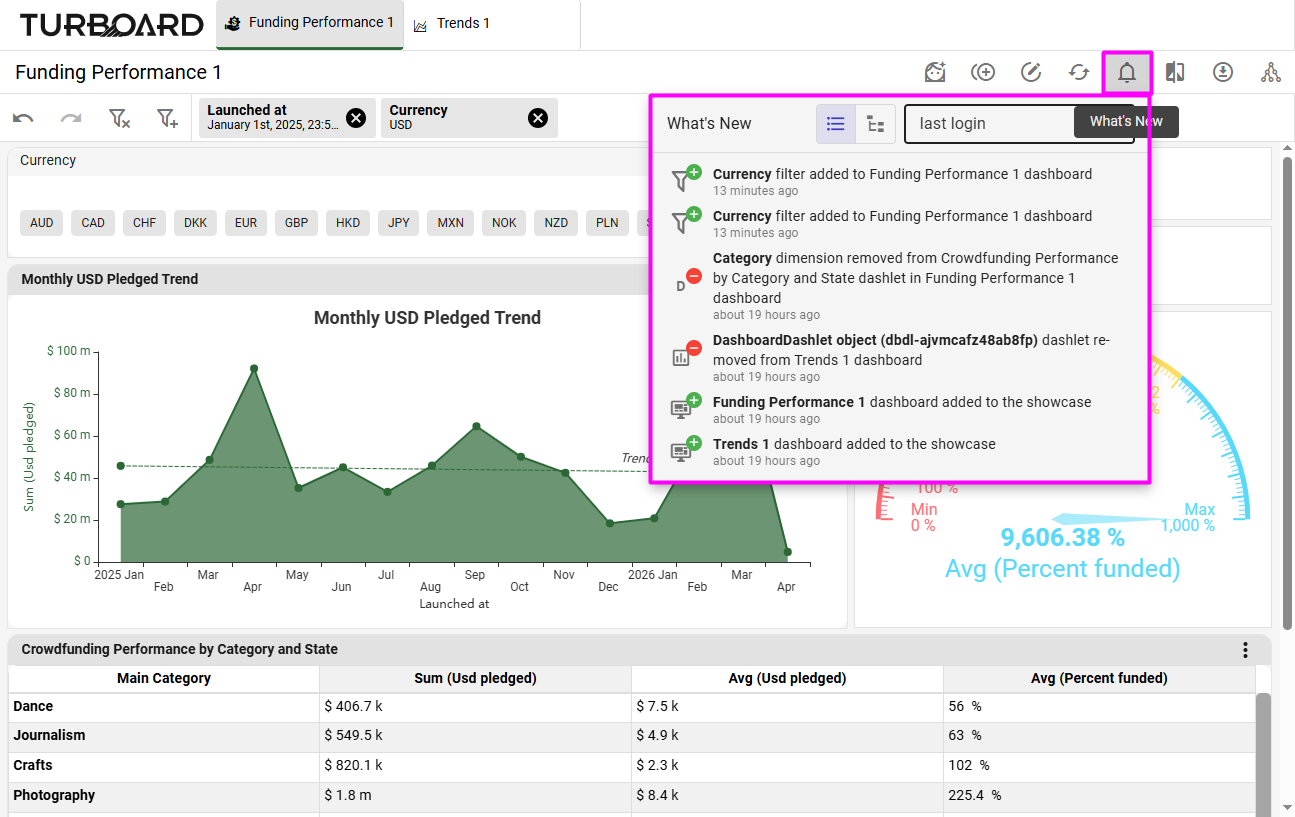
A summary of showcase recent updates via the Notification Bell.
Customizable Thickness for Gauge Dashlets
Gauge dashlets have always offered a “Thick Circle” toggle that switched between a default 5px circle and a thicker 25px one — a useful starting point, but not much room for fine-tuning. With this release, we’ve replaced that on/off toggle with a continuous slider that lets designers dial in any thickness from a subtle 5 to a high-visibility 120, giving your most critical KPIs exactly the visual weight they deserve.
The new control lives under the “Styling” panel as the “Circle Thickness” setting, and applies to both standard gauges and progress gauges — so any gauge dashlet on your dashboards benefits from the upgrade.
Even better, gauge thickness is now responsive to canvas dimensions. The value you choose with the slider becomes the base thickness, which then scales automatically as the dashlet resizes — keeping your gauges visually balanced whether they’re displayed on a wide TV wall or a phone screen, with no extra configuration needed.
Experience the difference firsthand on this dashboard, where five sample gauges with progressively thicker strokes sit side by side — drag the page or shrink your window to see the responsive scaling in action.

Stop building dashboards, and start getting answers. Experience the next era of BI with our leading GenAI capabilities ‒ request your personalized free demo today.