What's New
Listing Pages Overhaul
↩️Undo & Redo in the Dashboard Playground
🔐Automatic Groups for LDAP Users
🔗Expression Filters Join Cross-Filtering
June Release Highlights
This month's update delivers a complete redesign of the listing pages — with tags, favorites, and a new sortable table view that make organizing hundreds of assets effortless — alongside undo & redo support in the dashboard playground, automatic group assignment for LDAP users, and expression filters that now participate in cross-filtering. Additionally, our team has successfully addressed 263 issues to optimize overall platform performance.
A Complete Overhaul of Listing Pages
We have completely redesigned the listing pages across the platform — the lists of showcases, dashboards, dashlets, and views all share a fresh, cleaner look built for teams that manage hundreds of assets. The search, filtering, and grouping controls have moved out of the pane that used to slide open on the right and now sit in a compact toolbar on the top right of the page, keeping the whole screen focused on your content.
1. Smarter Cards with Tags & Favorites
Setting favorites and assigning tags is now just a click away directly on each card. Tags work like folders — but more flexible, since a single element can carry multiple tags at once — and you can group the entire listing by tags to navigate through hundreds of elements with ease. While favorites are personal to each user, tags are set by designer users and visible to everyone, making them a shared organization layer for your whole team. To keep the interface clean, per-card controls such as the three-dots menu, tag assignment, and the favorite star appear only on mouse-over. Cards also surface more information at a glance — each showcase card, for example, now shows how many dashboards and dashlets it contains.
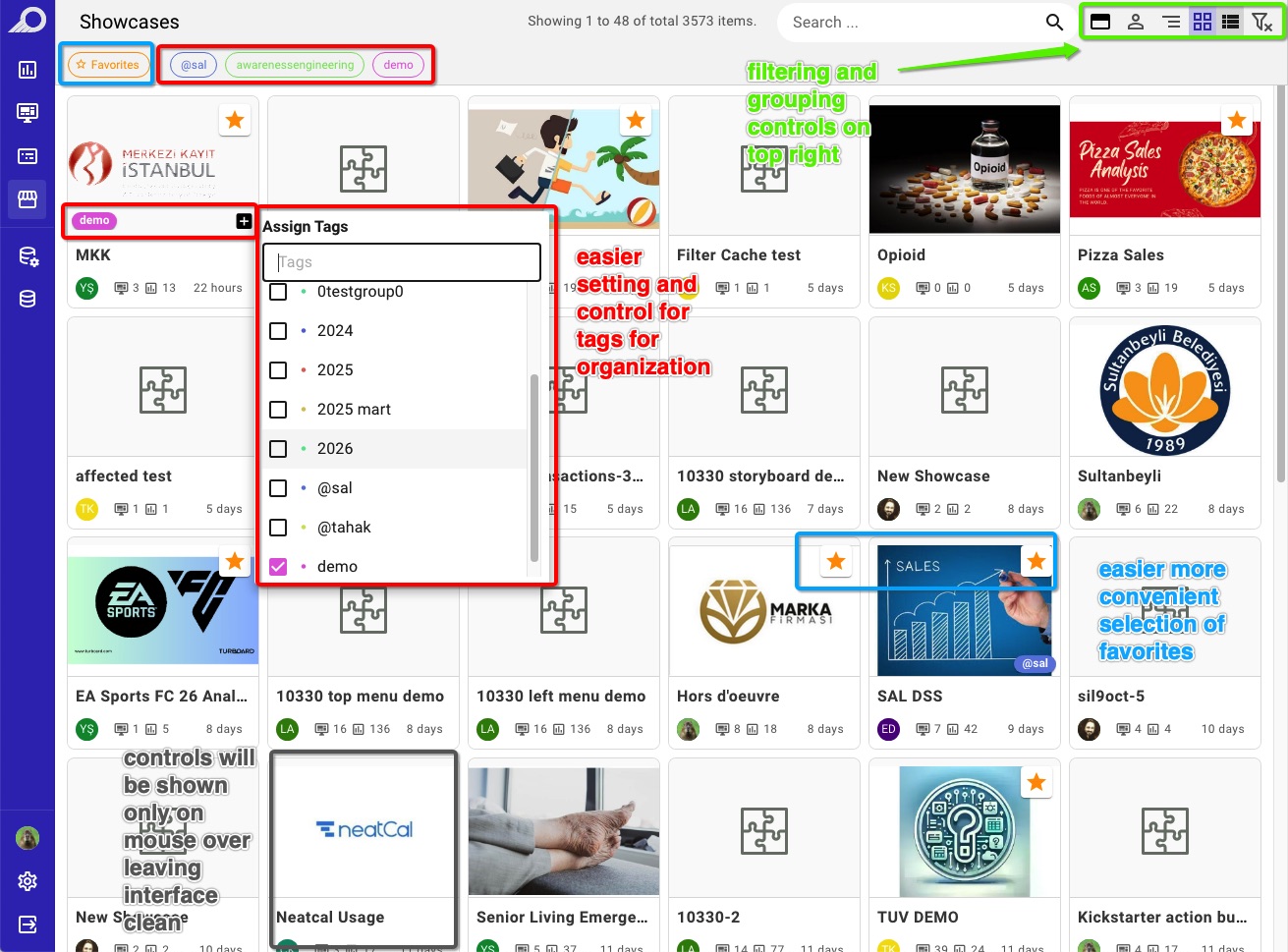
The redesigned card view — filtering and grouping controls on the top right, one-click tags and favorites, and hover-only card controls for a clean interface.
2. New Table View with Smart Sorting
Alongside the classic cards, listing pages now offer a brand-new Table view, selected with the layout buttons at the top right. Every column title is clickable — sort by Title, Creator, or Last Update in a single click, ascending or descending. And when you search with a keyword, the sort order automatically switches to Relevance, so the results that best match your phrase always rise to the top of the list.
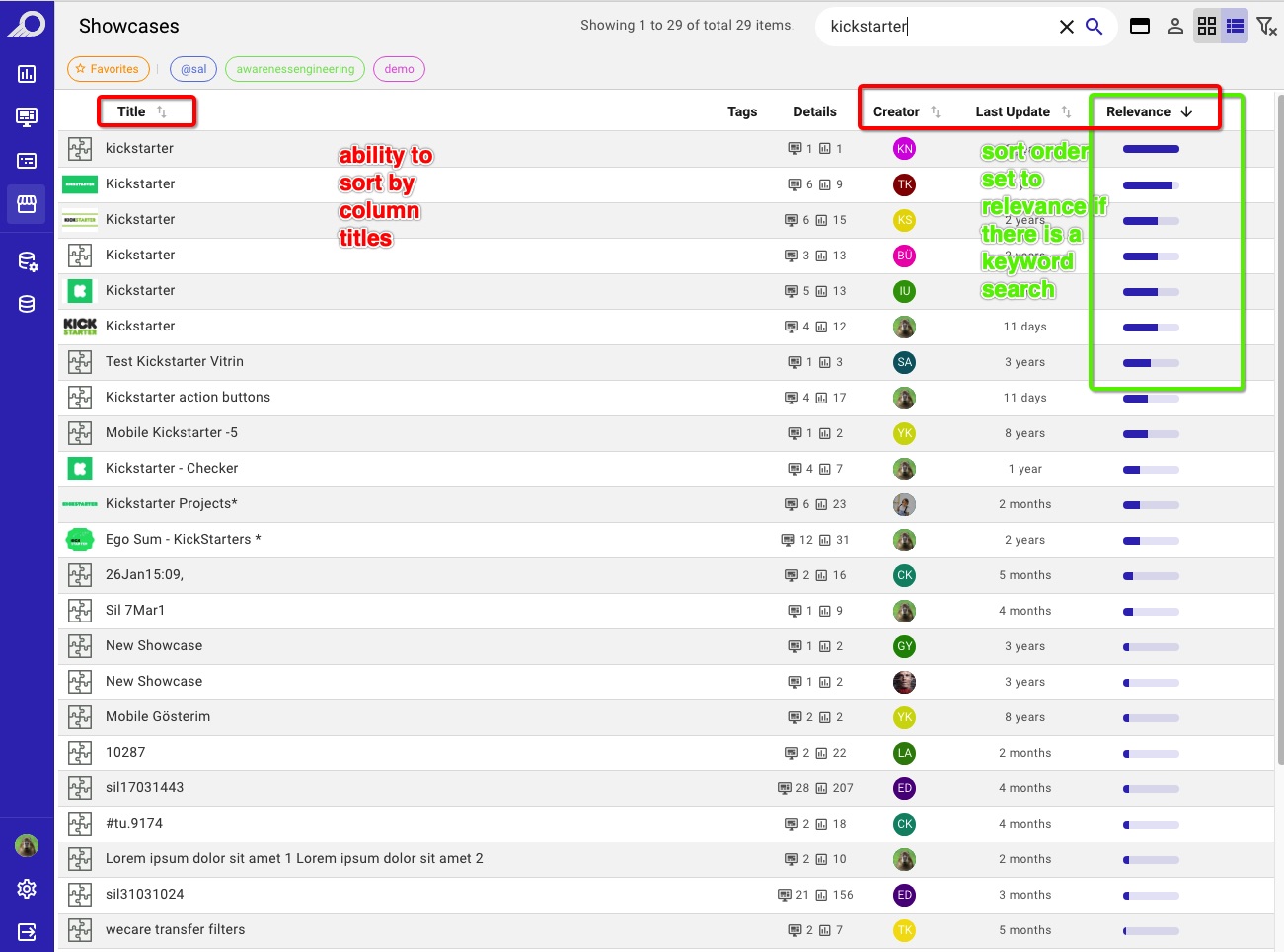
The new Table view — click any column title to sort; keyword searches are automatically ordered by Relevance.
Undo & Redo in the Dashboard Playground
The dashlet playground has offered an undo button for years — and with this release, the same safety net arrives in the dashboard playground. A new back button in the top toolbar lets designers instantly take back their last action, so a misplaced dashlet, an accidental resize, or a wrong setting is never more than one click away from being fixed.
And if your last action was an undo, a redo button appears right next to it, letting you step forward again and restore the change. Together they make experimenting with dashboard layouts completely risk-free.
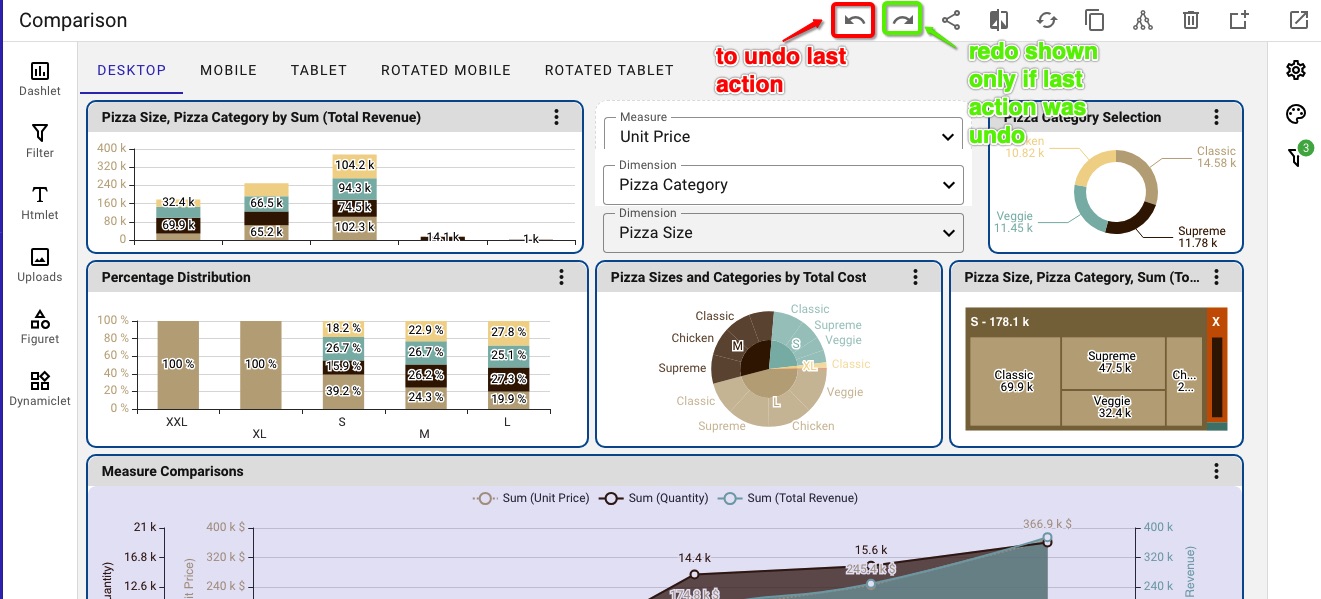
Undo your last action in the dashboard playground — the redo button appears whenever your last action was an undo.
Automatic Group Assignment for LDAP Users
Great news for organizations authenticating through LDAP / Active Directory: user group management no longer needs a manual step. Under Administration → LDAP/AD Settings, the Group Settings section now includes a new “Mirror Groups” option. When enabled, users signing in via LDAP are automatically added to the TURBOARD groups that match their directory attribute values — instantly inheriting the shared assets and permissions of those groups.
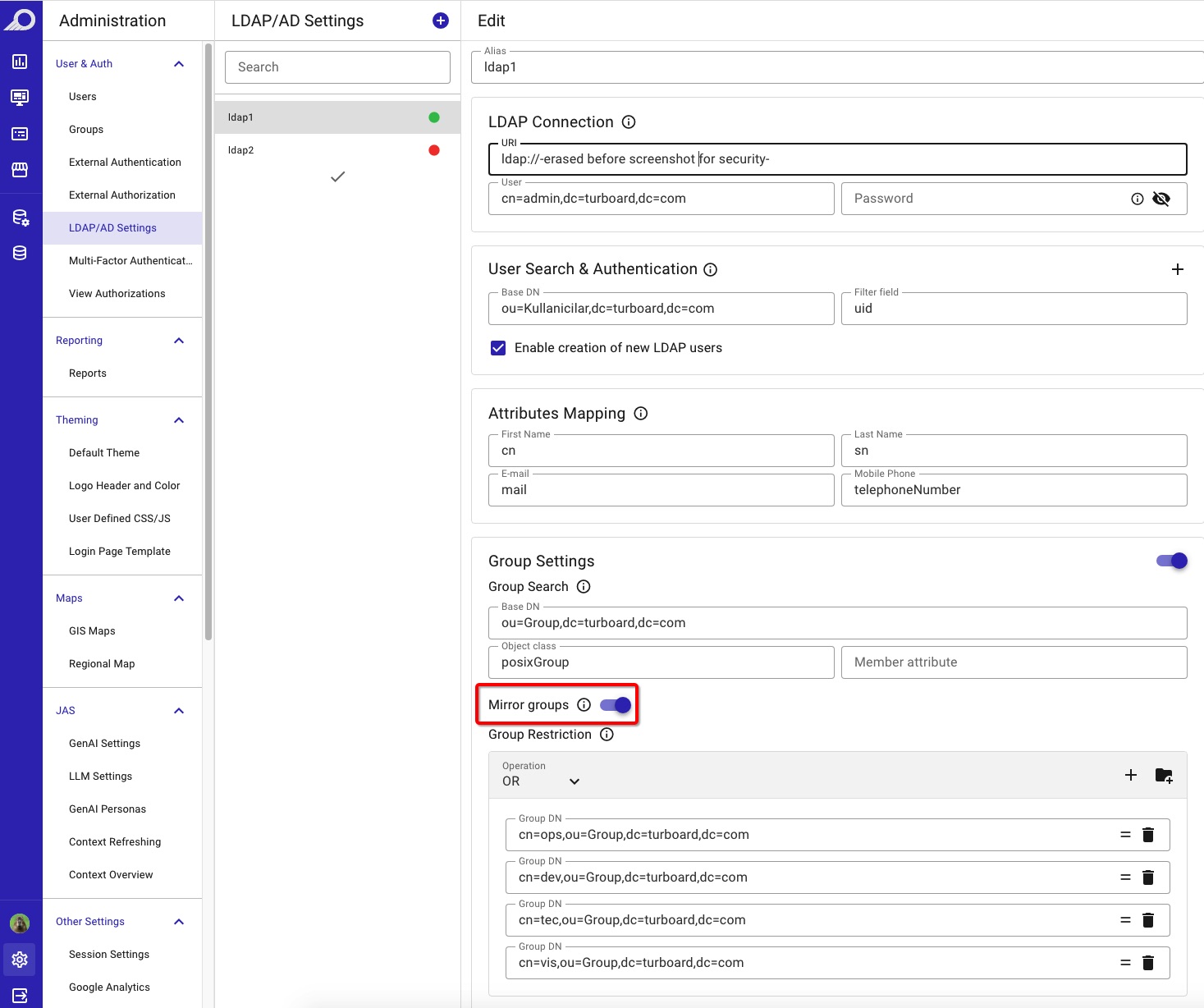
Enable “Mirror Groups” under Group Settings in LDAP/AD Settings to map directory groups onto TURBOARD groups automatically.
Because directory group memberships can change at any moment, TURBOARD re-checks them at every login and updates the user's TURBOARD groups accordingly — keeping platform access aligned with your directory in real time, with zero administrative effort.
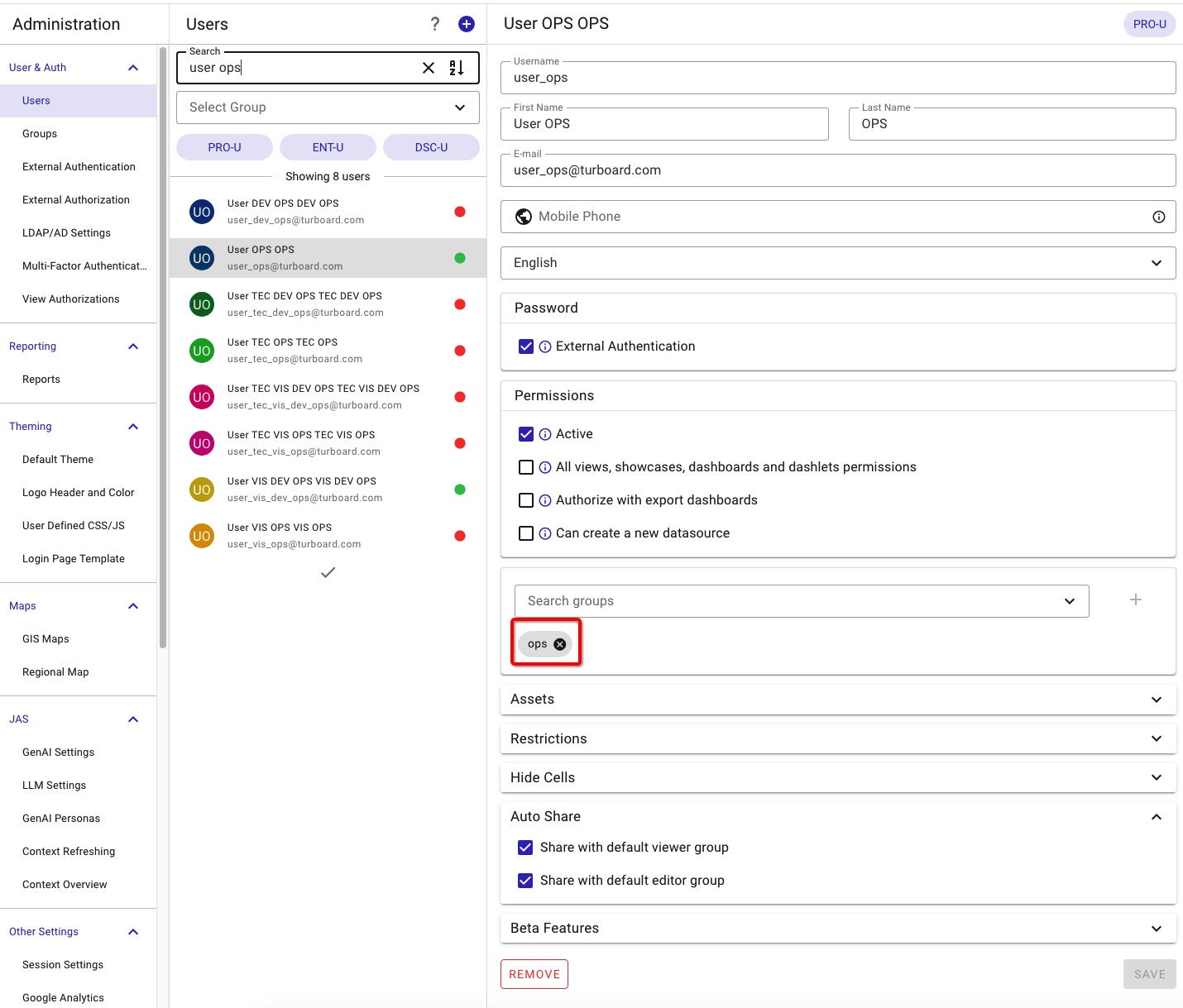
An LDAP user automatically placed in the matching TURBOARD group — membership is refreshed on every login.
Expression Filters Now Join Cross-Filtering
Expression filters are one of TURBOARD's most powerful tools: they are produced by an SQL expression, letting you filter on values that don't naturally exist as columns in your tables. Until now, however, they stood apart from the rest of your filters. With this release, the Edit Filter screen offers the “Affected” option for expression filters as well — enable it, and the values an expression filter presents narrow down automatically according to the selections made in other filters on the dashboard.
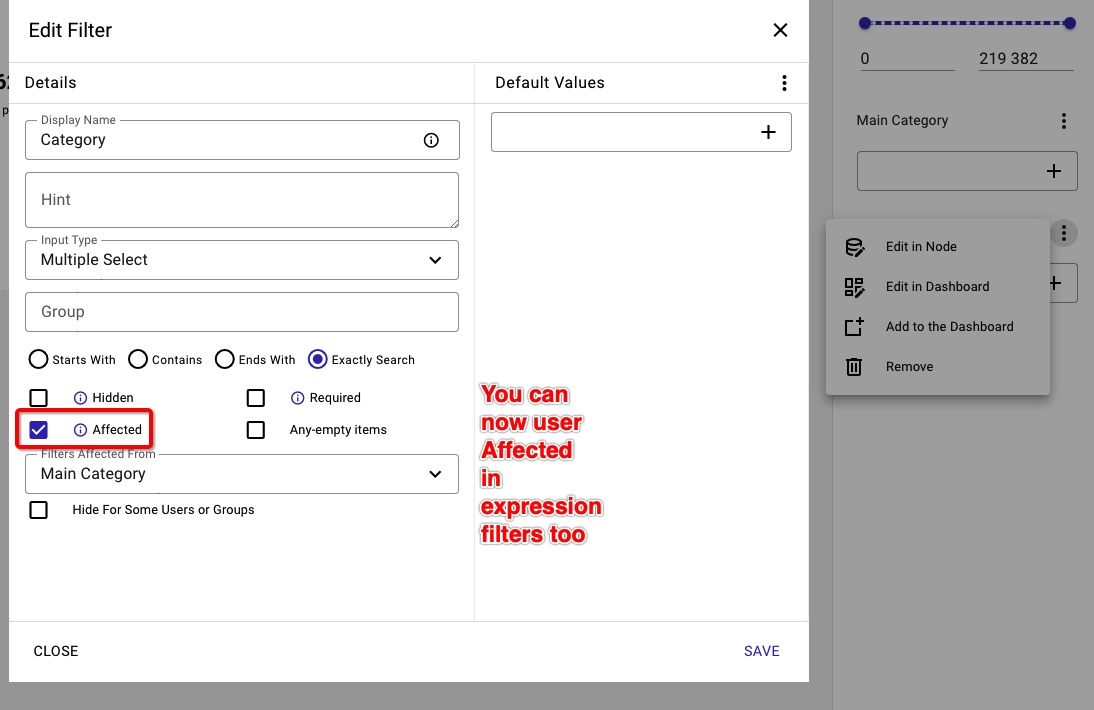
Enable the “Affected” option for an expression filter on the Edit Filter screen.
The integration works in both directions — other filters on the dashboard can now be affected by expression filter selections too — and it plays nicely with the rest of the filtering toolkit, including node filters and merged filters. Your SQL-powered filters are now full citizens of the cross-filtering experience.
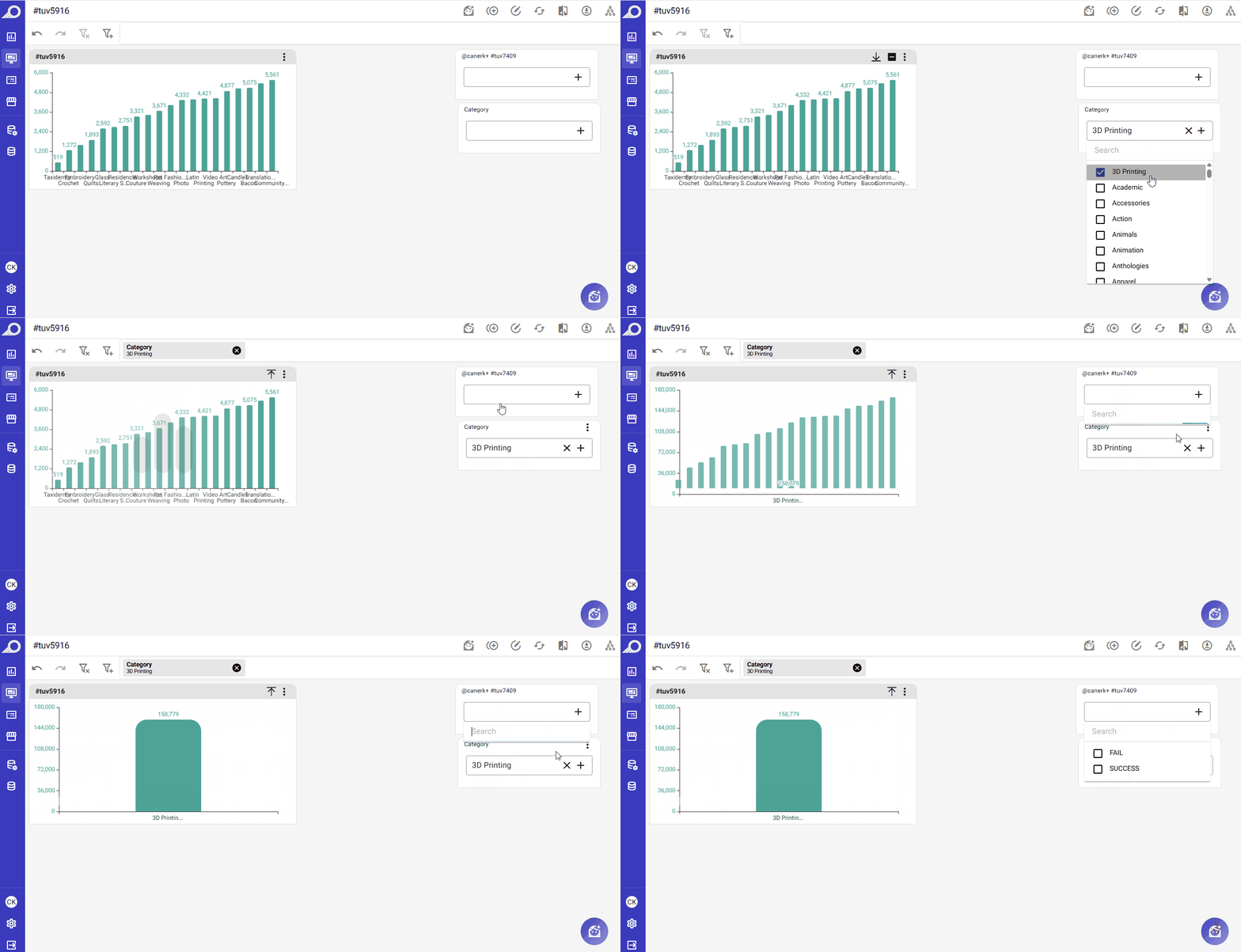
An expression filter's values narrowing down live as other filters are applied — cross-filtering in both directions.

Stop building dashboards, and start getting answers. Experience the next era of BI with our leading GenAI capabilities ‒ request your personalized free demo today.