What's New
December Release Highlights
We are equipping designers with one-click period-based date filters, curated AI persona lists, and new table formatting options to deliver a cleaner end-user experience. To support these enhancements, our team also addressed 245 issues in November, delivering a wide range of stability improvements and system optimizations.
Smart Date Controls: One-Click Periods & Dynamic Logic
We have expanded our date filtering options to make period selection faster. While the standard “Start/End” range picker remains available for custom dates, it often required too many clicks just to pick a standard month. With this update, users can now select specific periods with a single click.
With the new “Date Period” input type, designers can present dates as simple lists, such as Years, Quarters, Months, Weeks, or Days. Depending on the setup, users can tick a single box or select several periods at once (like Q1 and Q2). This creates a clean dropdown experience that instantly filters data without the complexity of a calendar range picker.
This new input type also introduces two powerful capabilities:
1. Intelligent Relative Conversion
Static selections can now become dynamic defaults. The “Convert to Relative” icon is readily available within the filter interface. When a designer selects a period and clicks this icon, it locks the default selection to “Current Period”. This ensures that the entire Dashboard or specific Dashlets with their own filters automatically update to load the latest data for the end-user without manual intervention.
2. Stackable Date Filters
For advanced logic, you can now add the same date dimension multiple times to your dashlet or dashboard.
This enables complex scenarios, such as filtering for a specific Year (Filter 1) while simultaneously excluding a specific Quarter (Filter 2) using the same date field.
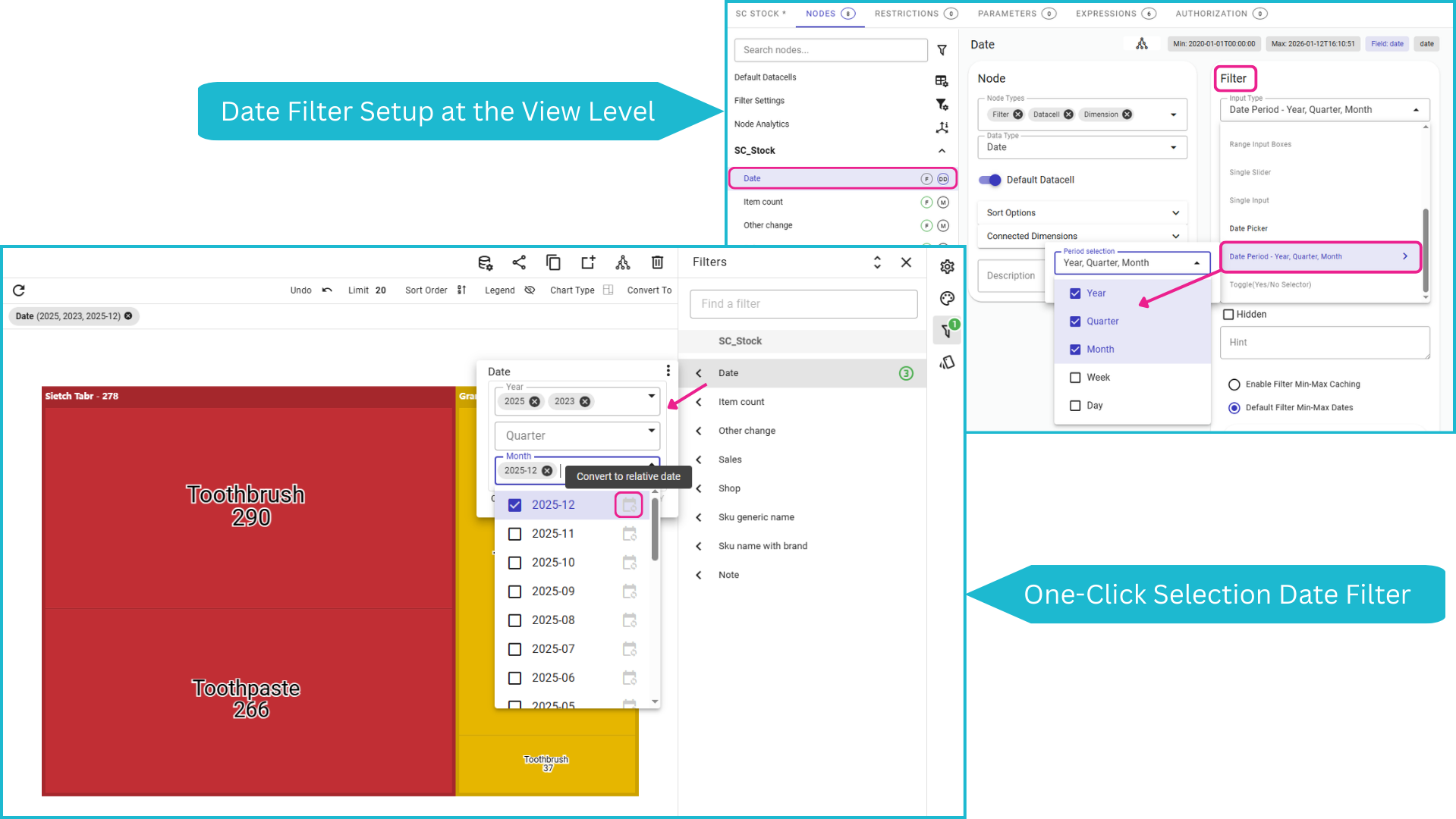
Configuring the “Date Period” filter properties at the View level allows Designers to use the one-click dropdown period filter and instantly convert it to a relative rule.
Watch how Single Period Selection, Relative Logic, and Stackable Filters work together to create faster, smarter dashboards.
Preserve Line Breaks in PTs
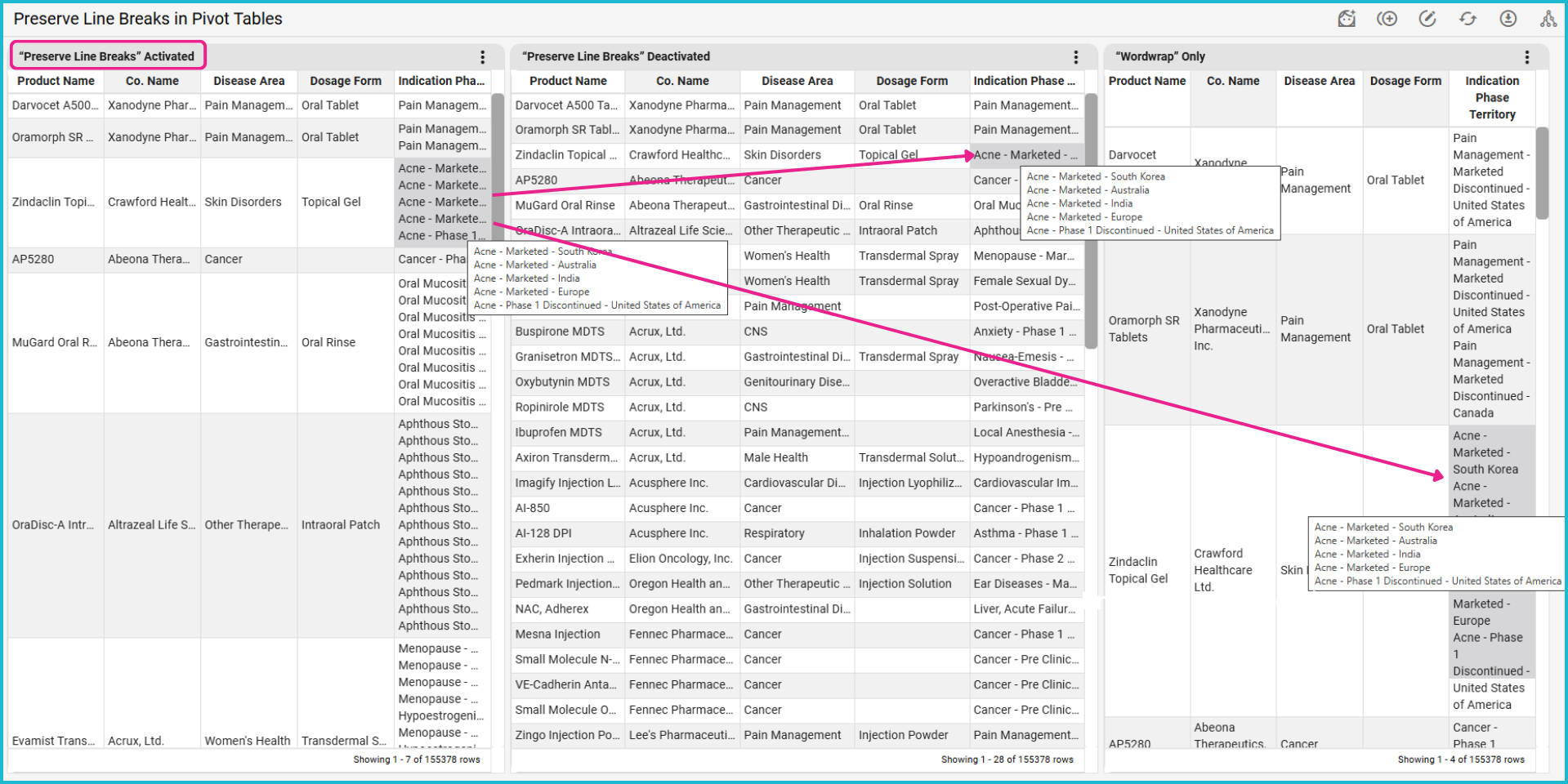
For clearer data presentation in pivot tables, we added “Preserve Line Breaks”, available when “Wordwrap” is disabled. This option respects explicit line breaks in your data, which is perfect for multi-line lists or addresses, while truncating long text with ellipses (...). It keeps your table rows compact and readable without sacrificing structure.
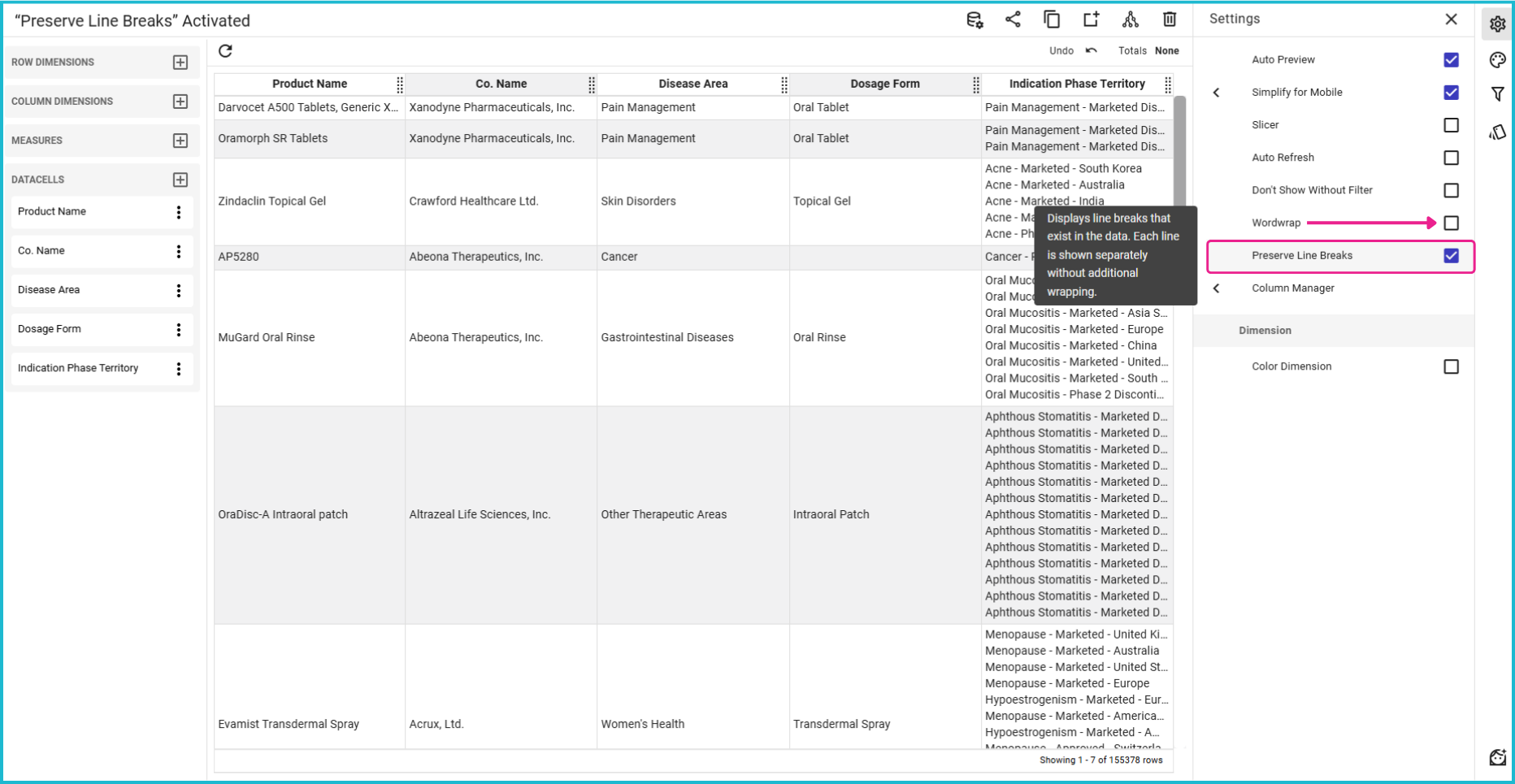
When “Wordwrap” is unchecked, the new “Preserve Line Breaks” option appears. It respects data-defined new lines while truncating long text to keep rows compact.
Curated AI Personas
Designers now have finer control over the “JAS Explain” experience. You can curate the exact list of personas available to the end-user.
By simply checking or unchecking items in the “Persona” settings menu, you can restrict the broad admin-defined list to show only the personas relevant to that specific dashboard's context.
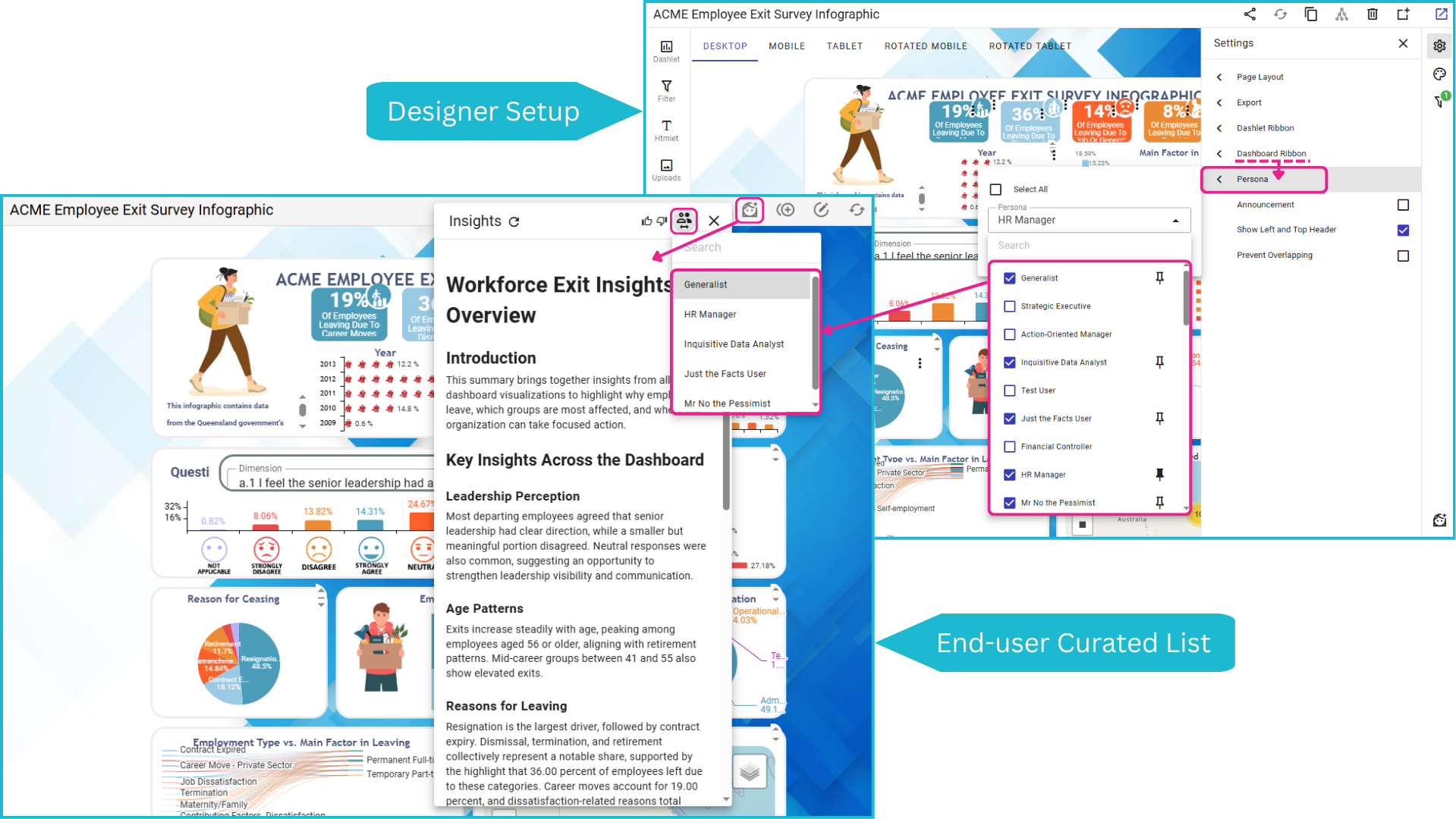
Designers can curate a specific subset of personas relevant to the dashboard. The end-user sees only this refined list when accessing “JAS Explain” from the main “Dashboard Ribbon”.
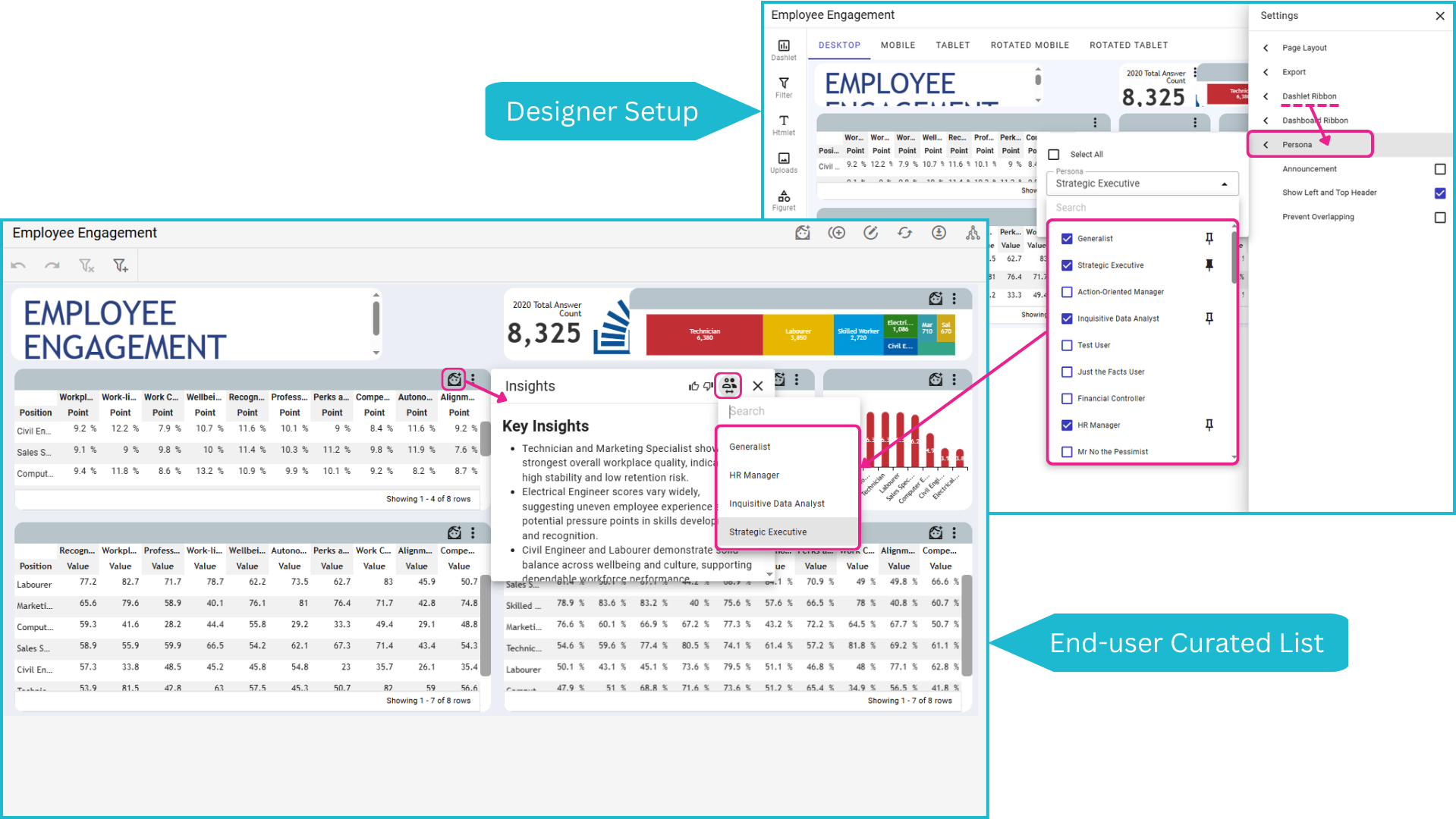
If “JAS Explain” is enabled for individual dashlets, the same curated list and default selection set by the designer will appear, ensuring a consistent analytical experience.

Stop building dashboards, and start getting answers. Experience the next era of BI with our leading GenAI capabilities ‒ request your personalized free demo today.